We've been making some significant improvements to the Brainfish Slack integration — better control over how your channels are set up, and a brand new way to build your knowledge base without ever leaving Slack.
Here's what's changed.
More control over your Slack channels
Managing which channels connect to which Brainfish agent is now a lot more straightforward. A few things that are better:
- Switch agents per channel without the hassle. Need to move a channel from your internal team agent to a customer-facing support agent? You can now reassign channels directly — no need to disconnect and start from scratch. This makes it much easier to evolve how you use Brainfish as your team grows or your support setup changes.
- See at a glance which channels are ready. The integration now makes it clearer which Slack channels have been fully connected on the Slack side and which still need attention, so you're not left guessing why a channel isn't showing up.
- View all channels for a given agent in one place. Instead of hunting through a combined channel list, you can now filter to see exactly which channels belong to a specific agent — making it easier to audit your setup and spot anything that doesn't look right.
Create knowledge directly from Slack
This is the big one. Your team has valuable conversations in Slack every day — answers to tricky questions, workarounds, how-tos — and until now, that knowledge lived and died in thread history. Now you can capture it instantly.
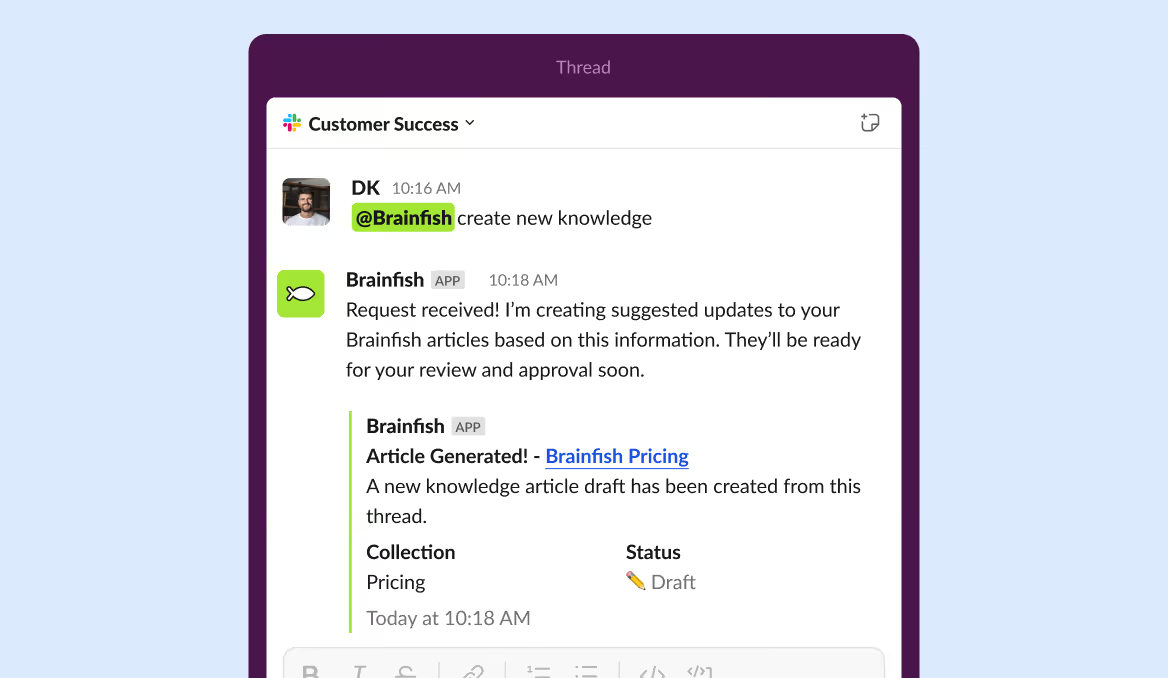
When you're in any Slack thread, just tag Brainfish and say "create knowledge":
@Brainfish create knowledge from this thread
Brainfish will read the thread, review it against your existing knowledge base, and then head over to the Brainfish app to see what it produced. Depending on the conversation, it will either draft a new article for your team to review, or suggest updates to an article that already exists.
Your team reviews, approves, and publishes — Brainfish does the first draft.
Give your agents an identity
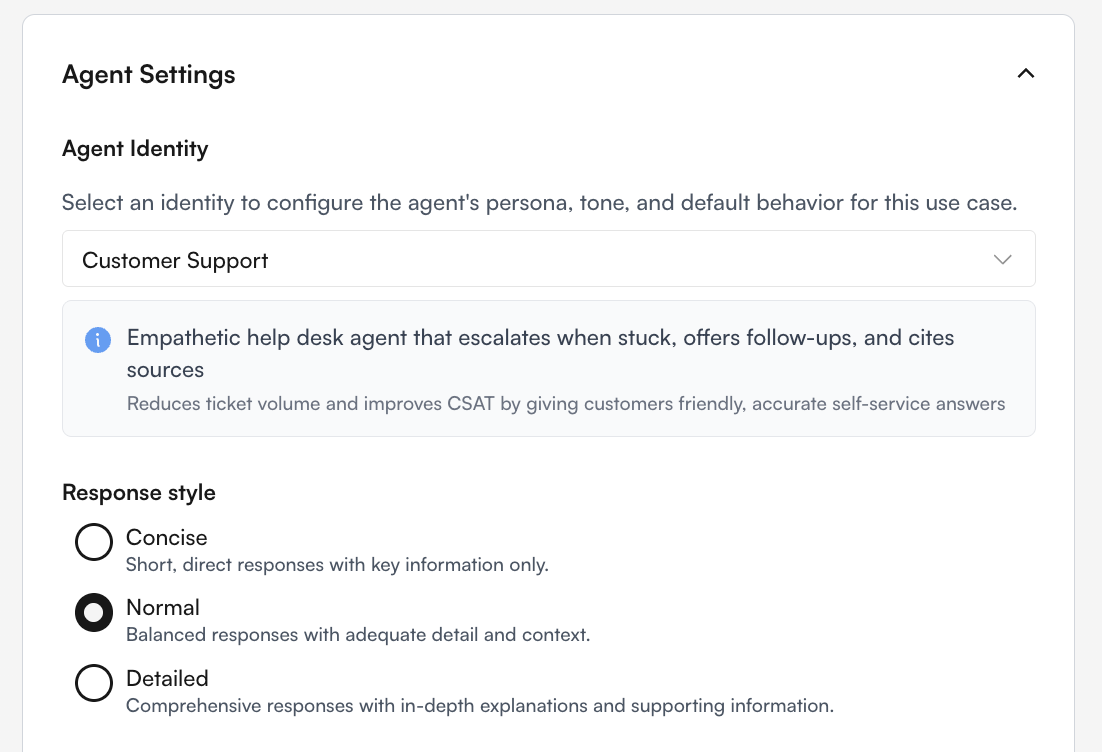
Make responses feel more consistent and context-aware with Agent Identity. Choose from predefined personas like Customer Support, Internal Enablement, or Technical Support — and Brainfish will automatically enrich each agent with business and product context from your knowledge base.
Here's how it works:
- Choose an identity template. Pick the persona that matches your agent's purpose from the dropdown in agent configuration. Each template comes with built-in tone and style guidelines.
- Automatic business and product context. Brainfish scans your knowledge base to generate a contextual summary of your business and product. This is stored as memory and injected into the agent's context at answer time, so agents understand your product and speak in the right tone without extra configuration on your end.
- Stays up to date. When your knowledge base content changes significantly, the business and product context is automatically refreshed — similar to how session discovery works.
This helps agents deliver answers that feel natural, contextually aware, and aligned with your brand and use case.
One thing you'll need to do: reconnect your Slack integration
To unlock these new features, your Slack workspace admin will need to briefly reconnect the Brainfish app. It takes under two minutes, and your existing setup is preserved — you won't lose anything.
Here's how:
- Go to Settings → Integrations → Slack in your Brainfish dashboard
- Click Disconnect, then Connect to Slack
- Approve the permissions and you're done
After reconnecting, Brainfish will automatically migrate your existing channels. Any channel where you've already been using Brainfish will be carried over and connected to your first Slack agent — which for most customers is exactly what they had before. You'll see your channels right where you left them, and everything will continue working as normal.
If you have any questions or anything looks off after reconnecting, reach out to your customer success contact and we'll sort it out.