Posts

Cut Support Back-and-Forth in Half: Brainfish Now Supports Image Attachments

Published on

Justin Gabriel

March 25, 2026

Bubble
Bubble
Bubble
Bubble
Bubble
Bubble
Bubble
Bubble
Bubble
Bubble
Bubble
Bubble
Bubble
Bubble
Bubble
Bubble
Bubble
Bubble
Bubble
Bubble
Bubble
Bubble
Cut Support Back-and-Forth in Half: Brainfish Now Supports Image Attachments

"Can you send a screenshot?"

Support teams have been saying it for years. Customer can't describe what they're seeing - a red thing, a weird UI state, a button that won't click - and the instinct is: just show me.

The screenshot arrives. Then someone has to open it, figure out what they're looking at, and manually construct a response. The image is in the thread. The context still isn't.

Customers are already trying to show you. Brainfish can now use what they show - automatically understanding the issue, and using your approved product knowledge to help them troubleshoot in seconds, not multiple threads.

This problem is more common than you think

Before we even demoed this feature, one of our customers flagged the exact pain point it was built to solve:

"We do a lot of image upload and screenshot sharing through chat with our customers. It’ll be great to have Brainfish diagnose and solve a lot of these issues now." - Ayryn

Customers are already trying to share screenshots in support conversations wherever they can. The problem isn't that they don't want to show you what's wrong. It's that there's been no good way to make those images useful.

Stop asking customers to describe what they see

Brainfish now lets anyone attach images to a question, so visual problems get accurate answers on the first try.

Instead of:

  • "It sort of looks like a warning…"
  • "The button on the right isn't working…"
  • "I'm seeing a weird UI state…"

You get:

  • A screenshot (or product photo)
  • The exact context
  • A faster, clearer answer

The before/after

Before:

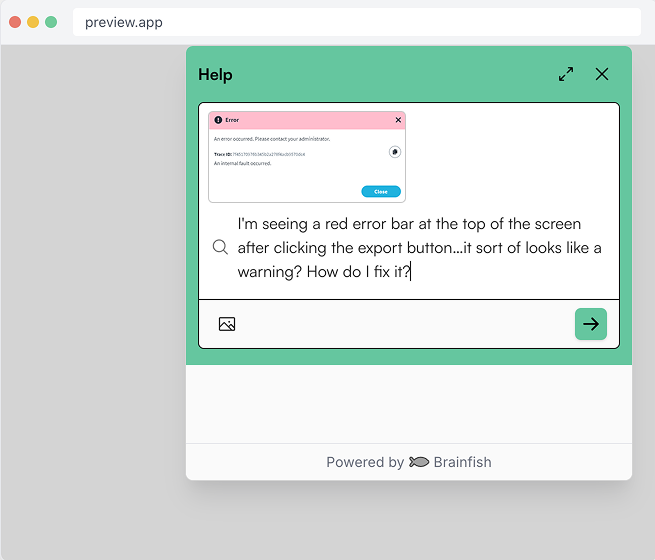
"I'm seeing a red error bar at the top of the screen after clicking the export button…it sort of looks like a warning?"

After:

Upload a screenshot → Brainfish answers correctly, immediately.

What's new

You can attach up to 4 images to any Brainfish question.

Images can be added two ways:

  • Upload from your device
  • Paste directly from your clipboard (Cmd/Ctrl+V)

You'll see thumbnail previews before you submit, and you can remove images before sending.

Where it works

Image attachments are available across all three Brainfish channels.

Widget

Who it's for: Customers, while they're in your product.

The Widget is the embedded support experience customers interact with while using your product. When something breaks or looks wrong mid-session, they're already there. Now they can attach a screenshot directly to their question instead of trying to put a visual problem into words. It's the fastest path from "something's wrong" to a knowledge-backed answer, without leaving the app or opening a ticket.

Assist

Who it's for: Your support agents.

Assist is the in-browser AI layer your support team uses to get accurate, knowledge-backed answers and draft responses faster. When a customer sends a screenshot inside a support ticket, agents can paste that image directly into Assist, ask Brainfish what's going on, and get grounded context in seconds. No separate tools needed, and no manual transcription required before they can even begin helping.

Help Center

Who it's for: Customers looking for answers on their own terms.

The Help Center is your always-on self-service layer. With image upload, customers who visit looking for answers can now attach a screenshot to their question - getting a more specific, accurate result even when the issue they're seeing doesn't have a name they recognize.

What it looks like in practice

The feature works across multiple scenarios, each with a different use case and kind of frustration.

The error screen nobody can name

A customer clicks a button and something breaks. They open the widget and type: "I'm getting some kind of error after I click export." That description could mean fifty things. With image upload, they paste the screenshot instead. Brainfish reads the screen, cross-references it against your knowledge base, and tells them exactly what's happening and what to do - before the conversation has a chance to spiral into four clarifying questions.

The interface they're lost in

Complex B2B products are full of screens that new users don't have names for. They can see what's on their screen. They just don't know what to call it, which makes asking for help in text almost impossible. Now they can paste what they're looking at and ask "what am I looking at?" - and Brainfish can explain the screen, the navigation, and the next step, using the same product knowledge your team would reach for.

The screenshot that lands in a support ticket

This one's for your agents. When a customer sends a screenshot through a support ticket, someone on your team currently has to open it, read it, extract whatever text matters, and then start forming a response - before they've even begun helping. In Assist, agents can paste that same screenshot directly, ask Brainfish what's going on, and get a grounded, knowledge-backed answer in seconds. No separate tool. No manual transcription. As one support team lead at Huntress put it after testing it live: "Sometimes I hate when customers send images. What do I gotta find to use text extractor for this? And it worked."

Why this matters, especially for support and CX teams

Visual support issues, like error screens, unexpected UI states, and product photos, are the hardest to handle over text. And it's not just the customer who pays the price.

When a customer sends a screenshot today, the support agent on the other end has to figure out what they're looking at, manually extract any text from the image, and route it to the right place. That's a frustrating extra step before they can even start helping.

Customers can show instead of describe. The AI does the analysis, and agents get context without the manual overhead.

Every extra round of clarification costs you twice: your team's time and your customer's patience.

Learn more

See it in action at https://www.brainfishai.com/get-a-demo

import time
import requests
from opentelemetry import trace, metrics
from opentelemetry.sdk.trace import TracerProvider
from opentelemetry.sdk.metrics import MeterProvider
from opentelemetry.sdk.trace.export import ConsoleSpanExporter, SimpleSpanProcessor
from opentelemetry.sdk.metrics.export import ConsoleMetricExporter, PeriodicExportingMetricReader

# --- 1. OpenTelemetry Setup for Observability ---
# Configure exporters to print telemetry data to the console.
# In a production system, these would export to a backend like Prometheus or Jaeger.
trace.set_tracer_provider(TracerProvider())
tracer = trace.get_tracer(__name__)
span_processor = SimpleSpanProcessor(ConsoleSpanExporter())
trace.get_tracer_provider().add_span_processor(span_processor)

metric_reader = PeriodicExportingMetricReader(ConsoleMetricExporter())
metrics.set_meter_provider(MeterProvider(metric_readers=[metric_reader]))
meter = metrics.get_meter(__name__)

# Create custom OpenTelemetry metrics
agent_latency_histogram = meter.create_histogram("agent.latency", unit="ms", description="Agent response time")
agent_invocations_counter = meter.create_counter("agent.invocations", description="Number of times the agent is invoked")
hallucination_rate_gauge = meter.create_gauge("agent.hallucination_rate", unit="percentage", description="Rate of hallucinated responses")
pii_exposure_counter = meter.create_counter("agent.pii_exposure.count", description="Count of responses with PII exposure")

# --- 2. Define the Agent using NeMo Agent Toolkit concepts ---
# The NeMo Agent Toolkit orchestrates agents, tools, and workflows, often via configuration.
# This class simulates an agent that would be managed by the toolkit.
class MultimodalSupportAgent:
    def __init__(self, model_endpoint):
        self.model_endpoint = model_endpoint

    # The toolkit would route incoming requests to this method.
    def process_query(self, query, context_data):
        # Start an OpenTelemetry span to trace this specific execution.
        with tracer.start_as_current_span("agent.process_query") as span:
            start_time = time.time()
            span.set_attribute("query.text", query)
            span.set_attribute("context.data_types", [type(d).__name__ for d in context_data])

            # In a real scenario, this would involve complex logic and tool calls.
            print(f"\nAgent processing query: '{query}'...")
            time.sleep(0.5) # Simulate work (e.g., tool calls, model inference)
            agent_response = f"Generated answer for '{query}' based on provided context."
            
            latency = (time.time() - start_time) * 1000
            
            # Record metrics
            agent_latency_histogram.record(latency)
            agent_invocations_counter.add(1)
            span.set_attribute("agent.response", agent_response)
            span.set_attribute("agent.latency_ms", latency)
            
            return {"response": agent_response, "latency_ms": latency}

# --- 3. Define the Evaluation Logic using NeMo Evaluator ---
# This function simulates calling the NeMo Evaluator microservice API.
def run_nemo_evaluation(agent_response, ground_truth_data):
    with tracer.start_as_current_span("evaluator.run") as span:
        print("Submitting response to NeMo Evaluator...")
        # In a real system, you would make an HTTP request to the NeMo Evaluator service.
        # eval_endpoint = "http://nemo-evaluator-service/v1/evaluate"
        # payload = {"response": agent_response, "ground_truth": ground_truth_data}
        # response = requests.post(eval_endpoint, json=payload)
        # evaluation_results = response.json()
        
        # Mocking the evaluator's response for this example.
        time.sleep(0.2) # Simulate network and evaluation latency
        mock_results = {
            "answer_accuracy": 0.95,
            "hallucination_rate": 0.05,
            "pii_exposure": False,
            "toxicity_score": 0.01,
            "latency": 25.5
        }
        span.set_attribute("eval.results", str(mock_results))
        print(f"Evaluation complete: {mock_results}")
        return mock_results

# --- 4. The Main Agent Evaluation Loop ---
def agent_evaluation_loop(agent, query, context, ground_truth):
    with tracer.start_as_current_span("agent_evaluation_loop") as parent_span:
        # Step 1: Agent processes the query
        output = agent.process_query(query, context)

        # Step 2: Response is evaluated by NeMo Evaluator
        eval_metrics = run_nemo_evaluation(output["response"], ground_truth)

        # Step 3: Log evaluation results using OpenTelemetry metrics
        hallucination_rate_gauge.set(eval_metrics.get("hallucination_rate", 0.0))
        if eval_metrics.get("pii_exposure", False):
            pii_exposure_counter.add(1)
        
        # Add evaluation metrics as events to the parent span for rich, contextual traces.
        parent_span.add_event("EvaluationComplete", attributes=eval_metrics)

        # Step 4: (Optional) Trigger retraining or alerts based on metrics
        if eval_metrics["answer_accuracy"] < 0.8:
            print("[ALERT] Accuracy has dropped below threshold! Triggering retraining workflow.")
            parent_span.set_status(trace.Status(trace.StatusCode.ERROR, "Low Accuracy Detected"))

# --- Run the Example ---
if __name__ == "__main__":
    support_agent = MultimodalSupportAgent(model_endpoint="http://model-server/invoke")
    
    # Simulate an incoming user request with multimodal context
    user_query = "What is the status of my recent order?"
    context_documents = ["order_invoice.pdf", "customer_history.csv"]
    ground_truth = {"expected_answer": "Your order #1234 has shipped."}

    # Execute the loop
    agent_evaluation_loop(support_agent, user_query, context_documents, ground_truth)
    
    # In a real application, the metric reader would run in the background.
    # We call it explicitly here to see the output.
    metric_reader.collect()

Frequently Asked Questions

No items found.
Share this post

Recent Posts...